Ragdoll Destruction Playground Slow Motion for Cinematic Destruction
How and why to time-scale blasts, chainsaw moments, and fire so the physics stay readable �?and look great on video.
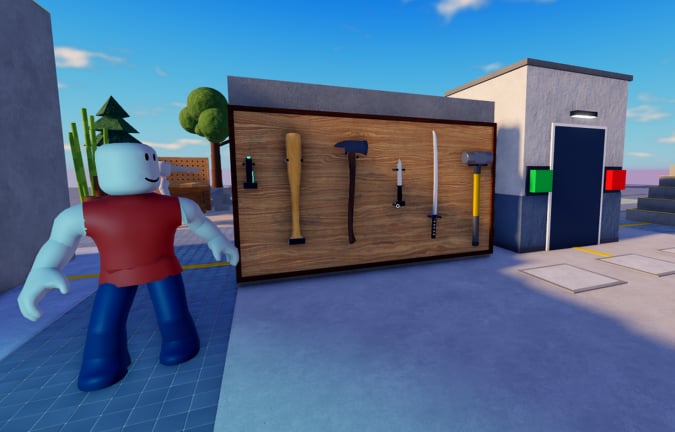
Slow motion is one of the headline features in Ragdoll Destruction Playground’s recent update wave. Harpax Dev calls out epic time slow-downs for amazing moments, and the sandbox is built so explosives, fire, and intelligent ragdolls reward players who actually watch what happens. This guide covers when to enable slow motion, how to pair it with weapons, and how to avoid turning every second of a session into syrup.
If you still need the basic join-and-reset loop, start with Getting Started. For bind locations, see Controls �?always confirm the toggle in the current HUD.
Why slow motion exists here
At full speed, a minigun burst, a chainsaw finish, and an explosive detonation can overlap into a blur. Slow motion stretches that blur into readable physics:
- Ragdoll limbs separate and tumble with distinct arcs
- Props launch with visible trajectories
- Fire spread becomes a sequence instead of an instant orange flash
- NPC behaviours �?panic, stumble, idle breaks �?are easier to notice
That clarity helps you learn the sandbox and helps you capture clips worth sharing. The verified showcase below demonstrates slow motion together with explosives and fire; use it as a visual target for your own timing, not as a substitute for practice.
When to turn it on
Enable slow motion for punctuation, not for the entire session:
- Pre-detonation �?arm or throw an explosive, step to a safe camera angle, then slow time just before the blast.
- Melee climax �?after a chase, slow as the chainsaw makes decisive contact.
- Fire watch �?after a blast seeds flames, slow down to see which props catch and how NPCs react.
- Prop collapse �?weaken a stack, trigger the final hit, and slow for the cascade.
Disable or return to normal speed while you reposition, select tools, or clean up mentally for the next idea. Living entirely in slow motion makes movement sluggish and hides how the game feels at default time scale.
Pairing slow motion with each tool family
Minigun: Slow motion mid-spray reveals tracing and stagger. Use it for a short window when a ragdoll starts to collapse, then return to normal to reposition.
Chainsaw: Slow motion sells contact. Start the approach at normal speed so footwork stays natural, then slow for the final seconds of the engagement.
Explosives and fire: This is the showcase pairing. One charge, clear frame, slow motion, detonation, watch the burn. Details on tool behaviour live in Weapons and Explosives.
Unlockables: When a new item drops, run the same slow-motion climax you use for defaults. Comparing slowed footage is the fastest way to see what the unlock actually changed.
Camera and framing tips
Slow motion only looks cinematic if the camera can see the subject:
- Back up before big blasts so debris does not eat the entire lens
- Keep the primary ragdoll or prop pile centered before you toggle
- Avoid wild mouse flicks while time is slowed; small pans read smoother
- On mobile, stabilize your device and use larger touch targets so you do not mistap reset mid-clip
If the frame is already cluttered, reset the map and restage. Slow motion magnifies mess as much as it magnifies spectacle.
Practice routine (ten minutes)
- Reset the map for a clean floor.
- Place one explosive or pick a clear chainsaw target.
- Count a beat, enable slow motion, trigger the action.
- Watch until fire or ragdoll motion settles.
- Return to normal speed, note what you learned, reset, and repeat with a different tool.
Do three clean takes before you invent multi-explosive spectacles. Depth beats noise.
Content creation notes
Creators lean on slow motion because Roblox clips are easier to read when impacts last longer. Record a few seconds of normal-speed setup, then the slowed climax, so viewers understand the space. Mention that you are in Ragdoll Destruction Playground by Harpax Dev so people do not confuse the footage with unrelated 2D ragdoll games. Link viewers to the Guides Hub if you publish written follow-ups.
Check the Updates Hub when patches tweak time scale, UI toggles, or explosive tuning �?a slower default blast might change when you need the manual slow-motion button. Community clip tastes also show up around Players discussions.
Common mistakes
- Leaving slow motion on while looting menus or walking across the map
- Triggering five explosives at once so even slowed footage is unreadable
- Standing inside the blast radius so the camera is all particles
- Skipping map reset until debris hides the next subject
- Copying keybinds from other ragdoll titles instead of checking this game’s UI
Avoid those and slow motion becomes a precision tool: the difference between “something exploded” and “I staged a readable destruction beat.”
Next steps
Combine this page with Weapons and Explosives for combo planning, Map Reset for session flow, and Controls whenever a patch moves the toggle. Redeem useful rewards from Codes before a recording session so unlockable toys are ready for their close-up.
Slow motion will not invent good ideas for you �?but it will reveal whether your idea actually worked.
Frequently Asked Questions
Quick answers to the most common questions.
Is slow motion only for videos?
No. It is also a learning tool: slowed impacts teach ragdoll and prop behaviour that full speed hides.
Should I play the whole session in slow motion?
No. Use it for climaxes �?detonations, finishes, fire spread �?then return to normal speed for movement and setup.
Which video showcases this feature?
The embedded video on this page, "Ragdoll Destruction Playground: Slow Motion, Explosives and Fire" (YouTube ID X9ezygUiZlw), is the verified reference.
Why is my slowed clip still messy?
Reset the map, use one primary effect, frame the subject before toggling, and avoid stacking too many explosives.
Where is the slow motion button?
On the HUD or in a menu depending on the build. Confirm the current bind in the in-game controls UI after updates.